
Introduction
Microsoft’s Active Directory is the backbone of the corporate world. It simplifies the management of devices and users within a corporate environment. In this room, we’ll take a deep dive into the essential components of Active Directory.
Microsoft的Active Directory是企业界的支柱。它简化了企业环境中设备和用户的管理。在这个房间里,我们将深入探讨 Active Directory 的基本组件。
Room Objectives 房间目标
In this room, we will learn about Active Directory and will become familiar with the following topics
在这个房间里,我们将了解 Active Directory,并熟悉以下主题
- What Active Directory is
什么是 Active Directory - What an Active Directory Domain is
什么是 Active Directory 域 - What components go into an Active Directory Domain
哪些组件进入 Active Directory 域 - Forests and Domain Trust
林和域信任 - And much more! 还有更多!
Room Prerequisites 客房先决条件
- General familiarity with Windows. Check the Windows Fundamentals module↗ for more information on this.
对 Windows 的一般熟悉程度。有关详细信息,请查看 Windows 基础知识模块。
Answer the questions below
回答以下问题
Click and continue learning!
点击并继续学习!
Windows Domains
Picture yourself administering a small business network with only five computers and five employees. In such a tiny network, you will probably be able to configure each computer separately without a problem. You will manually log into each computer, create users for whoever will use them, and make specific configurations for each employee’s accounts. If a user’s computer stops working, you will probably go to their place and fix the computer on-site.
想象一下,您正在管理一个只有五台计算机和五名员工的小型企业网络。在这样一个很小的网络中,您可能能够毫无问题地单独配置每台计算机。您将手动登录到每台计算机,为使用它们的人创建用户,并为每个员工的帐户进行特定配置。如果用户的计算机停止工作,您可能会去他们的地方并现场修复计算机。
While this sounds like a very relaxed lifestyle, let’s suppose your business suddenly grows and now has 157 computers and 320 different users located across four different offices. Would you still be able to manage each computer as a separate entity, manually configure policies for each of the users across the network and provide on-site support for everyone? The answer is most likely no.
虽然这听起来像是一种非常轻松的生活方式,但假设您的业务突然增长,现在有 157 台计算机和 320 个不同的用户分布在四个不同的办公室。您是否仍然能够将每台计算机作为单独的实体进行管理,为网络中的每个用户手动配置策略,并为每个人提供现场支持?答案很可能是否定的。
To overcome these limitations, we can use a Windows domain. Simply put, a Windows domain is a group of users and computers under the administration of a given business. The main idea behind a domain is to centralise the administration of common components of a Windows computer network in a single repository called Active Directory (AD). The server that runs the Active Directory services is known as a Domain Controller (DC).
为了克服这些限制,我们可以使用 Windows 域。简单地说,Windows 域是给定业务管理下的一组用户和计算机。域背后的主要思想是将 Windows 计算机网络的通用组件的管理集中在一个名为 Active Directory (AD) 的存储库中。运行 Active Directory 服务的服务器称为域控制器 (DC)。
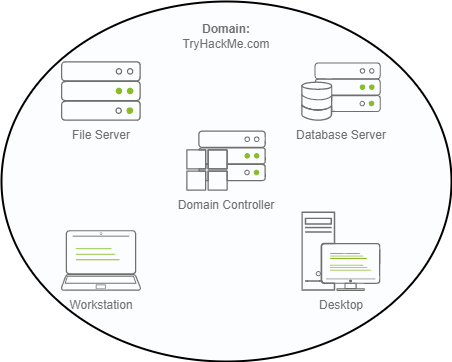
The main advantages of having a configured Windows domain are:
配置 Windows 域的主要优点是:
- Centralised identity management: All users across the network can be configured from Active Directory with minimum effort.
集中式身份管理:网络上的所有用户都可以从 Active Directory 进行配置,工作量最小。 - Managing security policies: You can configure security policies directly from Active Directory and apply them to users and computers across the network as needed.
管理安全策略:您可以直接从 Active Directory 配置安全策略,并根据需要将其应用于网络上的用户和计算机。
A Real-World Example 一个真实世界的例子
If this sounds a bit confusing, chances are that you have already interacted with a Windows domain at some point in your school, university or work.
如果这听起来有点令人困惑,那么您可能已经在学校、大学或工作中的某个时刻与 Windows 域进行了交互。
In school/university networks, you will often be provided with a username and password that you can use on any of the computers available on campus. Your credentials are valid for all machines because whenever you input them on a machine, it will forward the authentication process back to the Active Directory, where your credentials will be checked. Thanks to Active Directory, your credentials don’t need to exist in each machine and are available throughout the network.
在学校/大学网络中,通常会为您提供一个用户名和密码,您可以在校园内的任何计算机上使用。您的凭据对所有计算机都有效,因为每当您在计算机上输入凭据时,它都会将身份验证过程转发回 Active Directory,并在其中检查您的凭据。借助 Active Directory,您的凭据不需要存在于每台计算机中,并且在整个网络中都可用。
Active Directory is also the component that allows your school/university to restrict you from accessing the control panel on your school/university machines. Policies will usually be deployed throughout the network so that you don’t have administrative privileges over those computers.
Active Directory 也是允许您的学校/大学限制您访问学校/大学计算机上的控制面板的组件。策略通常会部署在整个网络中,因此您对这些计算机没有管理权限。
Welcome to THM Inc. 欢迎来到THM Inc.
During this task, we’ll assume the role of the new IT admin at THM Inc. As our first task, we have been asked to review the current domain “THM.local” and do some additional configurations. You will have administrative credentials over a pre-configured Domain Controller (DC) to do the tasks.
在此任务中,我们将担任 THM Inc. 的新 IT 管理员角色。作为我们的第一个任务,我们被要求审查当前域“THM.local”并进行一些额外的配置。您将拥有通过预配置的域控制器 (DC) 执行任务的管理凭据。
Be sure to click the Start Machine button now, as you’ll use the same machine for all tasks. This should open a machine in your browser. Should you prefer to connect to it via RDP, you can use the following credentials:
请务必立即单击“启动计算机”按钮,因为您将使用同一台计算机执行所有任务。这应该会在浏览器中打开一台计算机。如果希望通过 RDP 连接到它,可以使用以下凭据:

| Username** **** **用户名 | Administrator 管理员 |
|---|---|
| Password** **** **密码 | Password321 密码321 |
Note: When connecting via RDP, use THM****\Administrator as the username to specify you want to log in using the user Administrator on the THM domain.
注意:通过 RDP 连接时,请使用 THM****\Administrator 用户名来指定要使用 THM 域上的用户 Administrator 登录。
Since we will be connecting to the target machine via RDP, this is also a good time to start the AttackBox (unless you are using your own machine).
由于我们将通过 RDP 连接到目标计算机,因此这也是启动 AttackBox 的好时机(除非您使用的是自己的计算机)。
Answer the questions below
回答以下问题
In a Windows domain, credentials are stored in a centralised repository called…
在 Windows 域中,凭据存储在名为 Windows 域的集中存储库中。
Active Directory
Correct Answer
The server in charge of running the Active Directory services is called…
负责运行 Active Directory 服务的服务器称为…
Domain Controller
Correct Answer
Active Directory
The core of any Windows Domain is the Active Directory Domain Service (AD ****DS). This service acts as a catalogue that holds the information of all of the “objects” that exist on your network. Amongst the many objects supported by AD, we have users, groups, machines, printers, shares and many others. Let’s look at some of them:
任何 Windows 域的核心都是 Active Directory 域服务 (AD DS)。此服务充当目录,其中包含网络上存在的所有“对象”的信息。在 AD 支持的众多对象中,我们有用户、组、机器、打印机、共享等。让我们看一下其中的一些:
Users** **用户
Users are one of the most common object types in Active Directory. Users are one of the objects known as security principals, meaning that they can be authenticated by the domain and can be assigned privileges over resources like files or printers. You could say that a security principal is an object that can act upon resources in the network.
用户是 Active Directory 中最常见的对象类型之一。用户是称为安全主体的对象之一,这意味着它们可以由域进行身份验证,并且可以分配对文件或打印机等资源的权限。可以说,安全主体是可以作用于网络中的资源的对象。
Users can be used to represent two types of entities:
用户可用于表示两种类型的实体:
- People: users will generally represent persons in your organisation that need to access the network, like employees.
人员:用户通常代表组织中需要访问网络的人员,例如员工。 - Services: you can also define users to be used by services like IIS or MSSQL. Every single service requires a user to run, but service users are different from regular users as they will only have the privileges needed to run their specific service.
服务:您还可以定义要由 IIS 或 MSSQL 等服务使用的用户。每个服务都需要一个用户来运行,但服务用户与普通用户不同,因为他们只具有运行其特定服务所需的权限。
Machines** **机器
Machines are another type of object within Active Directory; for every computer that joins the Active Directory domain, a machine object will be created. Machines are also considered “security principals” and are assigned an account just as any regular user. This account has somewhat limited rights within the domain itself.
计算机是 Active Directory 中的另一种类型的对象;对于加入 Active Directory 域的每台计算机,将创建一个计算机对象。计算机也被视为“安全主体”,并像任何普通用户一样分配一个帐户。此帐户在域本身内的权限有限。
The machine accounts themselves are local administrators on the assigned computer, they are generally not supposed to be accessed by anyone except the computer itself, but as with any other account, if you have the password, you can use it to log in.
计算机帐户本身是指定计算机上的本地管理员,除了计算机本身之外,通常任何人都不应访问它们,但与任何其他帐户一样,如果您有密码,则可以使用它来登录。
Note: Machine Account passwords are automatically rotated out and are generally comprised of 120 random characters.
注意:机器帐户密码会自动轮换,通常由 120 个随机字符组成。
Identifying machine accounts is relatively easy. They follow a specific naming scheme. The machine account name is the computer’s name followed by a dollar sign. For example, a machine named DC01 will have a machine account called DC01 的计算机帐户。
Security Groups** **安全组
If you are familiar with Windows, you probably know that you can define user groups to assign access rights to files or other resources to entire groups instead of single users. This allows for better manageability as you can add users to an existing group, and they will automatically inherit all of the group’s privileges. Security groups are also considered security principals and, therefore, can have privileges over resources on the network.
如果您熟悉 Windows,您可能知道可以定义用户组,以便将文件或其他资源的访问权限分配给整个组,而不是单个用户。这样可以更好地管理,因为您可以将用户添加到现有组,并且他们将自动继承该组的所有权限。安全组也被视为安全主体,因此可以对网络上的资源具有特权。
Groups can have both users and machines as members. If needed, groups can include other groups as well.
组可以同时将用户和计算机作为成员。如果需要,组也可以包括其他组。
Several groups are created by default in a domain that can be used to grant specific privileges to users. As an example, here are some of the most important groups in a domain:
默认情况下,在域中创建多个组,这些组可用于向用户授予特定权限。例如,以下是域中一些最重要的组:
| Security Group** **安全组 | Description** **描述 |
|---|---|
| Domain Admins 域管理员 | Users of this group have administrative privileges over the entire domain. By default, they can administer any computer on the domain, including the DCs. 此组的用户对整个域具有管理权限。默认情况下,他们可以管理域上的任何计算机,包括 DC。 |
| Server Operators 服务器操作员 | Users in this group can administer Domain Controllers. They cannot change any administrative group memberships. 此组中的用户可以管理域控制器。他们无法更改任何管理组成员身份。 |
| Backup Operators 备份操作员 | Users in this group are allowed to access any file, ignoring their permissions. They are used to perform backups of data on computers. 允许此组中的用户访问任何文件,而忽略其权限。它们用于在计算机上执行数据备份。 |
| Account Operators 账户运营商 | Users in this group can create or modify other accounts in the domain. 此组中的用户可以创建或修改域中的其他帐户。 |
| Domain Users 域用户 | Includes all existing user accounts in the domain. 包括域中的所有现有用户帐户。 |
| Domain Computers 域计算机 | Includes all existing computers in the domain. 包括域中的所有现有计算机。 |
| Domain Controllers 域控制器 | Includes all existing DCs on the domain. 包括域上的所有现有 DC。 |
You can obtain the complete list of default security groups from the Microsoft documentation↗.
您可以从 Microsoft 文档中获取默认安全组的完整列表。
Active Directory Users and Computers
Active Directory 用户和计算机
To configure users, groups or machines in Active Directory, we need to log in to the Domain Controller and run “Active Directory Users and Computers” from the start menu:
要在 Active Directory 中配置用户、组或计算机,我们需要登录到域控制器并从开始菜单运行“Active Directory 用户和计算机”:
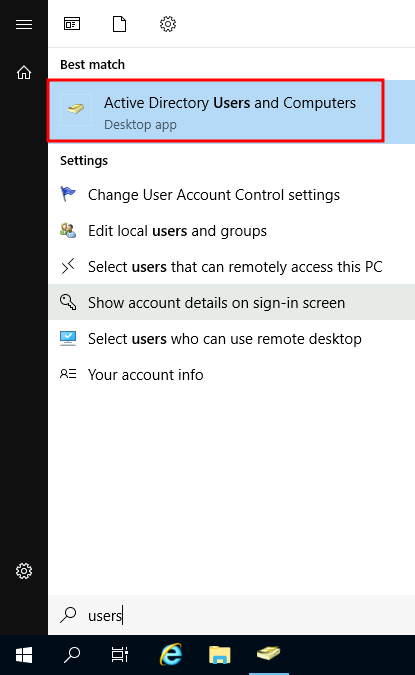
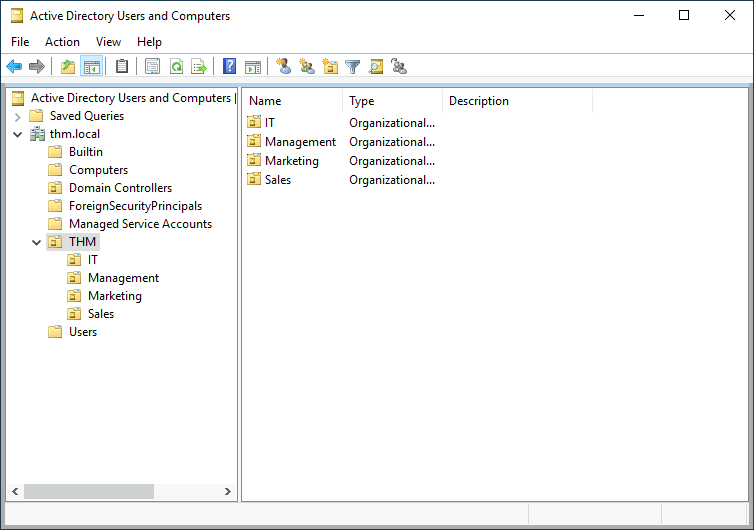
This will open up a window where you can see the hierarchy of users, computers and groups that exist in the domain. These objects are organised in Organizational Units (OUs) which are container objects that allow you to classify users and machines. OUs are mainly used to define sets of users with similar policing requirements. The people in the Sales department of your organisation are likely to have a different set of policies applied than the people in IT, for example. Keep in mind that a user can only be a part of a single OU at a time.
这将打开一个窗口,您可以在其中查看域中存在的用户、计算机和组的层次结构。这些对象在组织单位 (OU) 中组织,这些单位是允许您对用户和计算机进行分类的容器对象。OU 主要用于定义具有类似监管要求的用户集。例如,组织销售部门的人员可能应用了一组与 IT 人员不同的策略。请记住,用户一次只能是单个 OU 的一部分。
Checking our machine, we can see that there is already an OU called THM with four child OUs for the IT, Management, Marketing and Sales departments. It is very typical to see the OUs mimic the business’ structure, as it allows for efficiently deploying baseline policies that apply to entire departments. Remember that while this would be the expected model most of the time, you can define OUs arbitrarily. Feel free to right-click the THM OU and create a new OU under it called Students just for the fun of it.
检查我们的机器,我们可以看到已经有一个 OU 调用 THM ,其中包含 IT、管理、营销和销售部门的四个子 OU。非常典型的是,OU 模仿业务结构,因为它允许有效地部署适用于整个部门的基线策略。请记住,虽然这在大多数情况下都是预期的模型,但您可以任意定义 OU。随意右键单击 THM OU 并在其下创建一个新的 OU,只是为了好玩而调用 Students 。
If you open any OUs, you can see the users they contain and perform simple tasks like creating, deleting or modifying them as needed. You can also reset passwords if needed (pretty useful for the helpdesk):
如果打开任何 OU,则可以看到它们包含的用户,并根据需要执行简单的任务,例如创建、删除或修改它们。如果需要,您还可以重置密码(对帮助台非常有用):
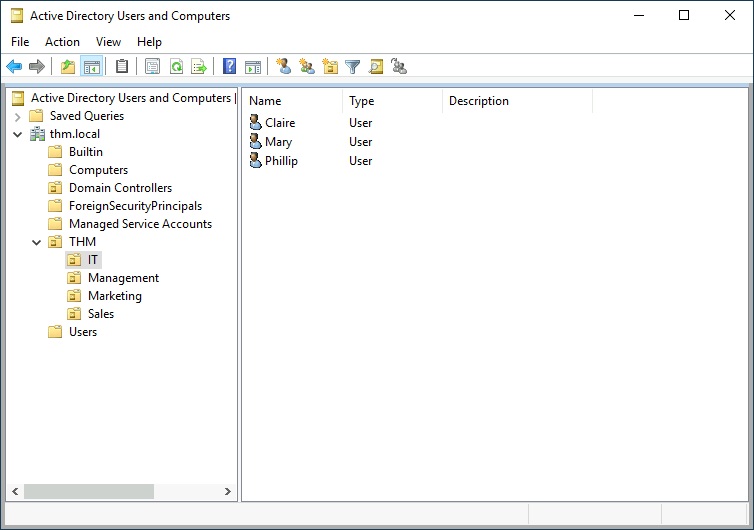
You probably noticed already that there are other default containers apart from the THM OU. These containers are created by Windows automatically and contain the following:
您可能已经注意到,除了 THM OU 之外,还有其他默认容器。这些容器由 Windows 自动创建,并包含以下内容:
- Builtin: Contains default groups available to any Windows host.
内置:包含可用于任何 Windows 主机的默认组。 - Computers: Any machine joining the network will be put here by default. You can move them if needed.
计算机:默认情况下,任何加入网络的计算机都将放在这里。如果需要,您可以移动它们。 - Domain Controllers: Default OU that contains the DCs in your network.
域控制器:包含网络中 DC 的默认 OU。 - Users: Default users and groups that apply to a domain-wide context.
用户:适用于域范围上下文的默认用户和组。 - Managed Service Accounts: Holds accounts used by services in your Windows domain.
托管服务帐户:保留 Windows 域中服务使用的帐户。
Security Groups vs OUs 安全组与 OU
You are probably wondering why we have both groups and OUs. While both are used to classify users and computers, their purposes are entirely different:
您可能想知道为什么我们同时拥有组和 OU。虽然两者都用于对用户和计算机进行分类,但它们的用途完全不同:
- OUs are handy for applying policies to users and computers, which include specific configurations that pertain to sets of users depending on their particular role in the enterprise. Remember, a user can only be a member of a single OU at a time, as it wouldn’t make sense to try to apply two different sets of policies to a single user.
OU 可用于将策略应用于用户和计算机,其中包括与用户集相关的特定配置,具体取决于用户在企业中的特定角色。请记住,用户一次只能是单个 OU 的成员,因为尝试将两组不同的策略应用于单个用户是没有意义的。 - Security Groups, on the other hand, are used to grant permissions over resources. For example, you will use groups if you want to allow some users to access a shared folder or network printer. A user can be a part of many groups, which is needed to grant access to multiple resources.
另一方面,安全组用于授予对资源的权限。例如,如果要允许某些用户访问共享文件夹或网络打印机,则将使用组。用户可以是多个组的一部分,这是授予对多个资源的访问权限所必需的。
Answer the questions below
回答以下问题
Which group normally administrates all computers and resources in a domain?
哪个组通常管理域中的所有计算机和资源?
Domain Admins
What would be the name of the machine account associated with a machine named TOM-PC?
与名为 TOM-PC 的计算机关联的计算机帐户的名称是什么?
TOM-PC$
Suppose our company creates a new department for Quality Assurance. What type of containers should we use to group all Quality Assurance users so that policies can be applied consistently to them?
假设我们公司创建了一个新的质量保证部门。我们应该使用哪种类型的容器来对所有质量保证用户进行分组,以便可以一致地将策略应用于他们?
Organizational Units
Managing Users in AD
Your first task as the new domain administrator is to check the existing AD OUs and users, as some recent changes have happened to the business. You have been given the following organisational chart and are expected to make changes to the AD to match it:
作为新的域管理员,您的首要任务是检查现有的 AD OU 和用户,因为业务最近发生了一些更改。您已获得以下组织结构图,并应对广告进行更改以匹配它:
Deleting extra OUs and users
删除额外的 OU 和用户
The first thing you should notice is that there is an additional department OU in your current AD configuration that doesn’t appear in the chart. We’ve been told it was closed due to budget cuts and should be removed from the domain. If you try to right-click and delete the OU, you will get the following error:
您应该注意到的第一件事是,您当前的 AD 配置中还有一个未显示在图表中的附加部门 OU。我们被告知,由于预算削减,它已关闭,应该从域名中删除。如果尝试右键单击并删除 OU,则会出现以下错误:
By default, OUs are protected against accidental deletion. To delete the OU, we need to enable the Advanced Features in the View menu:
默认情况下,OU 受到保护,不会被意外删除。要删除 OU,我们需要在“视图”菜单中启用“高级功能”:
This will show you some additional containers and enable you to disable the accidental deletion protection. To do so, right-click the OU and go to Properties. You will find a checkbox in the Object tab to disable the protection:
这将显示一些额外的容器,并使您能够禁用意外删除保护。为此,请右键单击 OU 并转到“属性”。您将在“对象”选项卡中找到一个复选框以禁用保护:
Be sure to uncheck the box and try deleting the OU again. You will be prompted to confirm that you want to delete the OU, and as a result, any users, groups or OUs under it will also be deleted.
请务必取消选中该框,然后再次尝试删除 OU。系统将提示您确认要删除 OU,因此,其下的任何用户、组或 OU 也将被删除。
After deleting the extra OU, you should notice that for some of the departments, the users in the AD don’t match the ones in our organisational chart. Create and delete users as needed to match them.
删除额外的 OU 后,您应该注意到,对于某些部门,AD 中的用户与我们组织结构图中的用户不匹配。根据需要创建和删除用户以匹配用户。
Delegation 代表团
One of the nice things you can do in AD is to give specific users some control over some OUs. This process is known as delegation and allows you to grant users specific privileges to perform advanced tasks on OUs without needing a Domain Administrator to step in.
在 AD 中可以做的一件好事是让特定用户对某些 OU 进行一些控制。此过程称为委派,允许您授予用户特定权限以在 OU 上执行高级任务,而无需域管理员介入。
One of the most common use cases for this is granting IT support the privileges to reset other low-privilege users’ passwords. According to our organisational chart, Phillip is in charge of IT support, so we’d probably want to delegate the control of resetting passwords over the Sales, Marketing and Management OUs to him.
最常见的用例之一是授予 IT support 重置其他低权限用户密码的权限。根据我们的组织结构图,Phillip 负责 IT 支持,因此我们可能希望将重置销售、营销和管理 OU 的密码控制权委托给他。
For this example, we will delegate control over the Sales OU to Phillip. To delegate control over an OU, you can right-click it and select Delegate Control:
在此示例中,我们将对 Sales OU 的控制权委托给 Phillip。若要委派对 OU 的控制权,可以右键单击它并选择“委派控制”:
This should open a new window where you will first be asked for the users to whom you want to delegate control:
这应该会打开一个新窗口,首先会要求你输入要委派控制权的用户:
Note: To avoid mistyping the user’s name, write “phillip” and click the Check Names button. Windows will autocomplete the user for you.
注意:为避免输入错误的用户名,请输入“phillip”,然后单击“检查名称”按钮。Windows 将为你自动完成用户任务。
Click OK, and on the next step, select the following option:
单击“确定”,然后在下一步中选择以下选项:
Click next a couple of times, and now Phillip should be able to reset passwords for any user in the sales department. While you’d probably want to repeat these steps to delegate the password resets of the Marketing and Management departments, we’ll leave it here for this task. You are free to continue to configure the rest of the OUs if you so desire.
单击“下一步”几次,现在 Phillip 应该能够为销售部门的任何用户重置密码。虽然你可能希望重复这些步骤来委派营销和管理部门的密码重置,但我们将把它留在这里完成此任务。如果您愿意,您可以自由地继续配置其余的 OU。
Now let’s use Phillip’s account to try and reset Sophie’s password. Here are Phillip’s credentials for you to log in via RDP:
现在让我们使用 Phillip 的帐户尝试重置 Sophie 的密码。以下是 Phillip 的凭据,供您通过 RDP 登录:
| Username** **** **用户名 | phillip 菲 利 普 |
|---|---|
| Password** **** **密码 | Claire2008 克莱尔2008 |
Note: When connecting via RDP, use THM****\phillip as the username to specify you want to log in using the user phillip on the THM domain.
注意:通过 RDP 连接时,请使用 THM****\phillip 用户名来指定要使用 THM 域上的用户 phillip 登录。
While you may be tempted to go to Active Directory Users and Computers to try and test Phillip’s new powers, he doesn’t really have the privileges to open it, so you’ll have to use other methods to do password resets. In this case, we will be using Powershell to do so:
虽然您可能很想去 Active Directory 用户和计算机尝试测试 Phillip 的新能力,但他实际上没有打开它的权限,因此您必须使用其他方法来进行密码重置。在这种情况下,我们将使用 Powershell 来执行以下操作:
Windows 窗户PowerShell PowerShell的(As Phillip) (饰演菲利普)
Since we wouldn’t want Sophie to keep on using a password we know, we can also force a password reset at the next logon with the following command:
由于我们不希望 Sophie 继续使用我们知道的密码,因此我们还可以使用以下命令在下次登录时强制重置密码:
Windows 窗户PowerShell PowerShell的(as Phillip) (饰演 Phillip)
Log into Sophie’s account with your new password and retrieve a flag from Sophie’s desktop.
使用您的新密码登录 Sophie 的帐户,然后从 Sophie 的桌面上检索一个标志。
Note: When connecting via RDP, use THM****\sophie as the username to specify you want to log in using the user sophie on the THM domain.
注意:通过 RDP 连接时,请使用 THM****\sophie 用户名来指定要使用 THM 域上的用户 sophie 登录。
PS C:\Users\phillip> Set-ADAccountPassword sophie -Reset -NewPassword (Read-Host -AsSecureString -Prompt 'New Password') -Verbose
New Password: *********
VERBOSE: Performing the operation "Set-ADAccountPassword" on target "CN=Sophie,OU=Sales,OU=THM,DC=thm,DC=local".PS C:\Users\phillip> Set-ADUser -ChangePasswordAtLogon $true -Identity sophie -Verbose
VERBOSE: Performing the operation "Set" on target "CN=Sophie,OU=Sales,OU=THM,DC=thm,DC=local".Answer the questions below
回答以下问题
先在THM\Administrator账户下打开“Active Directory 用户和计算机”管理界面,删除多余的OU,再对phillip用户授予重置销售部门任何用户密码的权限,然后登录THM\phillip账户,使用powershell重置销售部门用户sophie的登录密码,最后使用新密码登录THM\sophie账户,查看flag文件。
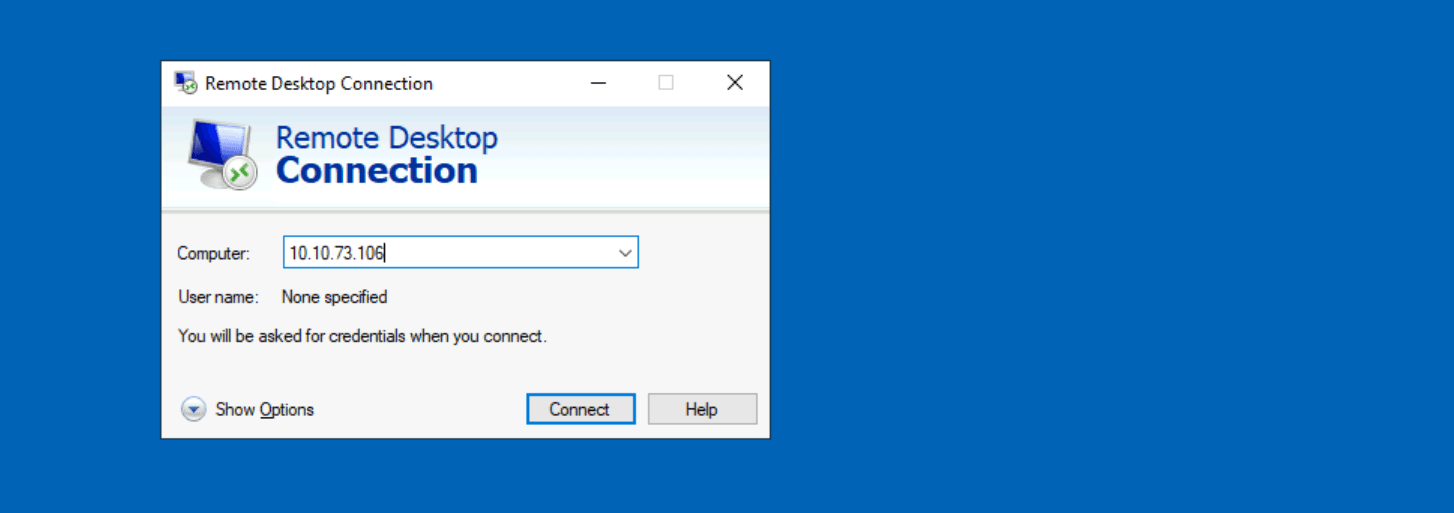
远程连接(在此页面输入Tryhackme提供的域ip即可,点击连接之后 会自动跳转到域成员的登录界面):
重置THM\sophie用户密码的命令:
Set-ADAccountPassword sophie -Reset -NewPassword (Read-Host -AsSecureString -Prompt 'New Password') -Verbose
#输入密码:qwert123456* (新密码要符合密码长度和复杂度)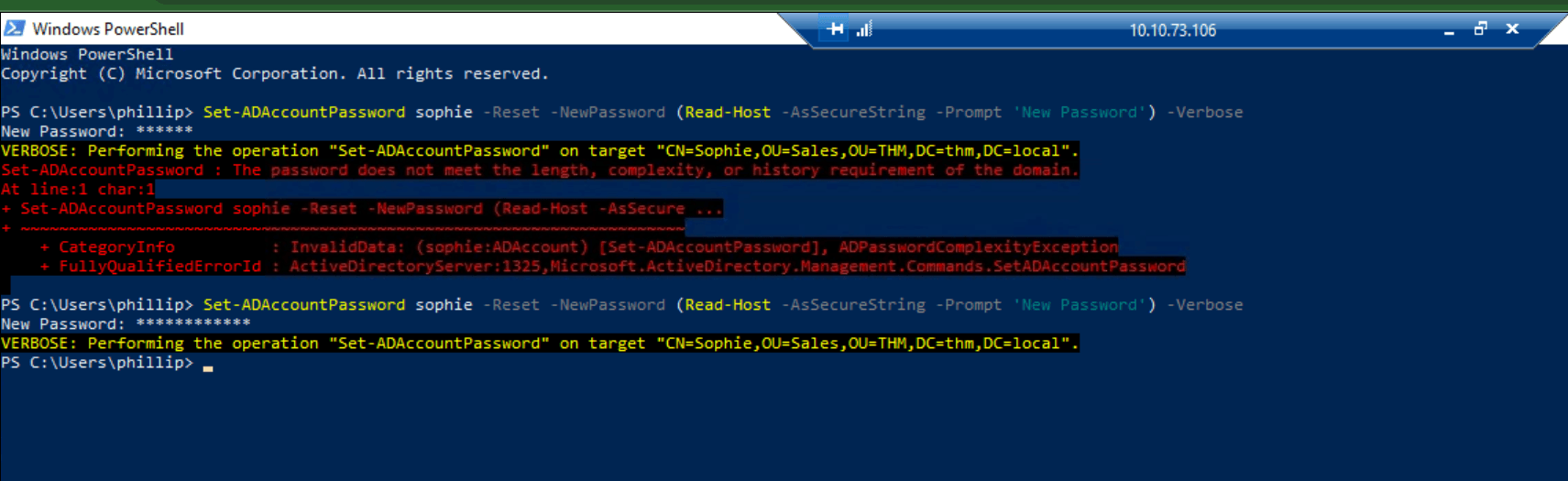
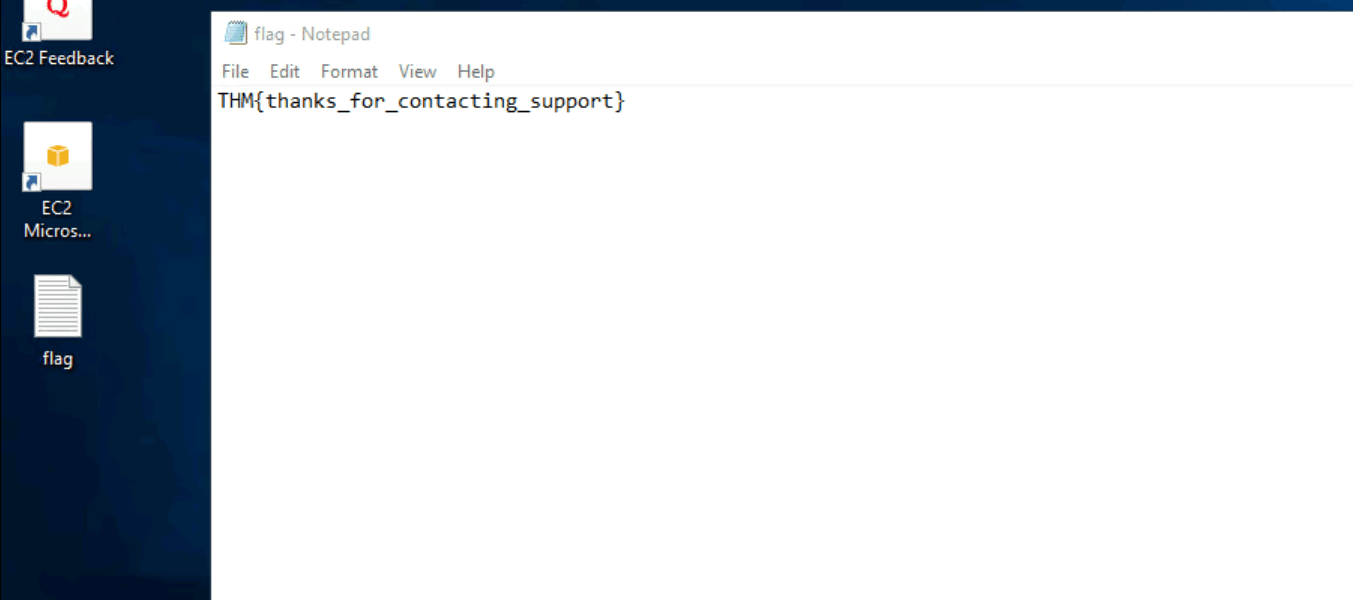
登录THM\sophie账户,查看flag文件内容:

Managing Computers in AD
By default, all the machines that join a domain (except for the DCs) will be put in the container called “Computers”. If we check our DC, we will see that some devices are already there:
默认情况下,加入域的所有计算机(DC 除外)都将放在名为“计算机”的容器中。如果我们检查我们的 DC,我们会看到一些设备已经存在:
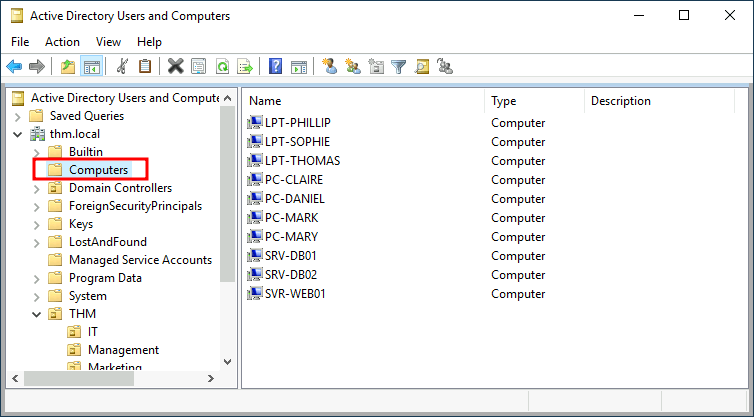
We can see some servers, some laptops and some PCs corresponding to the users in our network. Having all of our devices there is not the best idea since it’s very likely that you want different policies for your servers and the machines that regular users use on a daily basis.
我们可以看到一些服务器,一些笔记本电脑和一些PC与我们网络中的用户相对应。拥有我们所有的设备并不是最好的主意,因为您很可能希望为您的服务器和普通用户每天使用的机器使用不同的策略。
While there is no golden rule on how to organise your machines, an excellent starting point is segregating devices according to their use. In general, you’d expect to see devices divided into at least the three following categories:
虽然没有关于如何组织机器的黄金法则,但一个很好的起点是根据设备的使用情况隔离设备。通常,您希望看到设备至少分为以下三类:
1. Workstations** **1. 工作站
Workstations are one of the most common devices within an Active Directory domain. Each user in the domain will likely be logging into a workstation. This is the device they will use to do their work or normal browsing activities. These devices should never have a privileged user signed into them.
工作站是 Active Directory 域中最常见的设备之一。域中的每个用户都可能登录到工作站。这是他们将用于完成工作或正常浏览活动的设备。这些设备不应有特权用户登录。
2. Servers** **2. 服务器
Servers are the second most common device within an Active Directory domain. Servers are generally used to provide services to users or other servers.
服务器是 Active Directory 域中第二常见的设备。服务器通常用于向用户或其他服务器提供服务。
3. Domain Controllers** **3. 域控制器
Domain Controllers are the third most common device within an Active Directory domain. Domain Controllers allow you to manage the Active Directory Domain. These devices are often deemed the most sensitive devices within the network as they contain hashed passwords for all user accounts within the environment.
域控制器是 Active Directory 域中第三常见的设备。域控制器允许您管理 Active Directory 域。这些设备通常被认为是网络中最敏感的设备,因为它们包含环境中所有用户帐户的哈希密码。
Since we are tidying up our AD, let’s create two separate OUs for Workstations and Servers (Domain Controllers are already in an OU created by Windows). We will be creating them directly under the thm.local domain container. In the end, you should have the following OU structure:
由于我们正在整理 AD,因此让我们为 Workstations 和 Servers 创建两个单独的 OU(域控制器已位于 Windows 创建的 OU 中)。我们将直接在 thm.local 域容器下创建它们。最后,您应该具有以下 OU 结构:
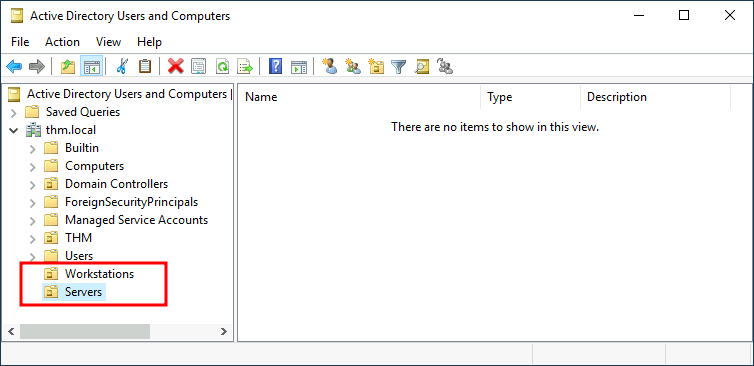
Now, move the personal computers and laptops to the Workstations OU and the servers to the Servers OU from the Computers container. Doing so will allow us to configure policies for each OU later.
现在,将个人计算机和便携式计算机从“计算机”容器移动到“工作站 OU”,将服务器移动到“服务器 OU”。这样做将允许我们稍后为每个 OU 配置策略。
Answer the questions below
回答以下问题
After organising the available computers, how many ended up in the Workstations OU?
在组织了可用的计算机后,有多少计算机最终进入了工作站 OU?
7
Is it recommendable to create separate OUs for Servers and Workstations? (yay/nay)
是否建议为服务器和工作站创建单独的 OU?(是/不是)
yay
Group Policies
So far, we have organised users and computers in OUs just for the sake of it, but the main idea behind this is to be able to deploy different policies for each OU individually. That way, we can push different configurations and security baselines to users depending on their department.
到目前为止,我们只是为了在 OU 中组织用户和计算机,但这背后的主要思想是能够为每个 OU 单独部署不同的策略。这样,我们就可以根据用户所在的部门向用户推送不同的配置和安全基线。
Windows manages such policies through Group Policy Objects (GPO). GPOs are simply a collection of settings that can be applied to OUs. GPOs can contain policies aimed at either users or computers, allowing you to set a baseline on specific machines and identities.
Windows 通过组策略对象 (GPO) 管理此类策略。GPO 只是可应用于 OU 的设置的集合。GPO 可以包含针对用户或计算机的策略,允许您在特定计算机和标识上设置基线。
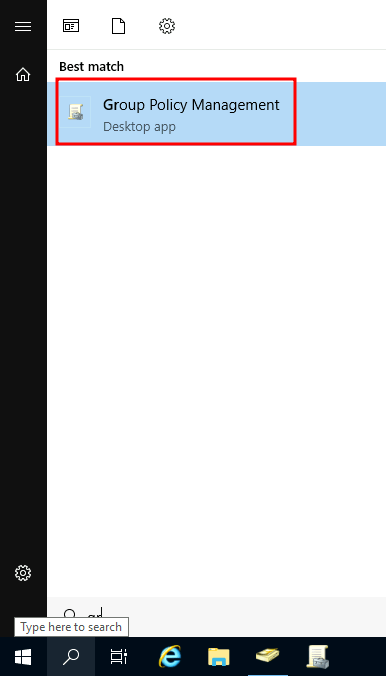
To configure GPOs, you can use the Group Policy Management tool, available from the start menu:
若要配置 GPO,可以使用“开始”菜单中的组策略管理工具:
The first thing you will see when opening it is your complete OU hierarchy, as defined before. To configure Group Policies, you first create a GPO under Group Policy Objects and then link it to the OU where you want the policies to apply. As an example, you can see there are some already existing GPOs in your machine:
打开它时,首先看到的是完整的 OU 层次结构,如前所述。若要配置组策略,请先在“组策略对象”下创建一个 GPO,然后将其链接到要应用策略的 OU。例如,您可以看到计算机中已经存在一些 GPO:
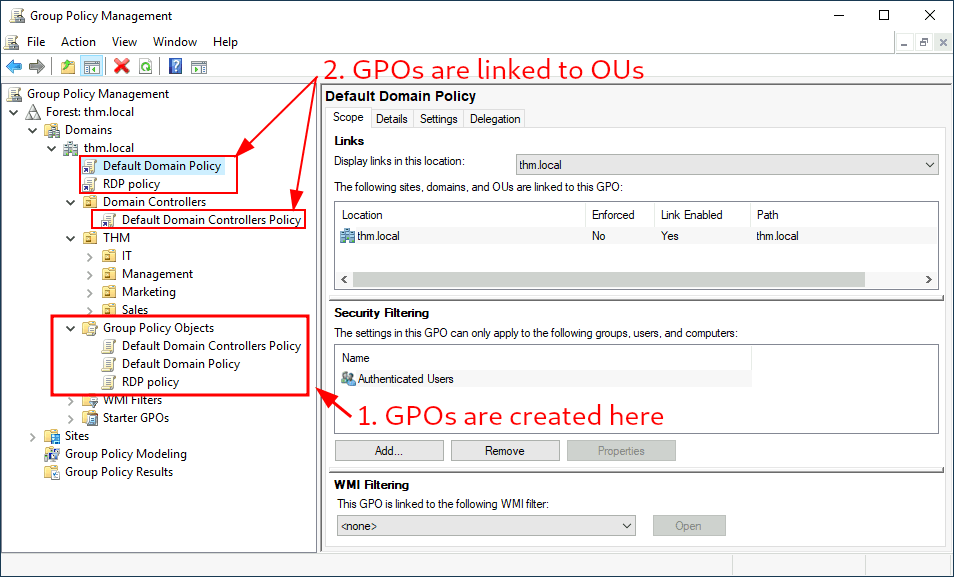
We can see in the image above that 3 GPOs have been created. From those, the Default Domain Policy and RDP** Policy are linked to the thm.local domain as a whole, and the Default Domain Controllers Policy is linked to the Domain Controllers OU only. Something important to have in mind is that any GPO will apply to the linked OU and any sub-OUs under it. For example, the Sales OU will still be affected by the Default Domain Policy.
在上图中,我们可以看到已经创建了 3 个 GPO。从这些中, Default Domain Policy 和 RDP **Policy 链接到整个 thm.local 域, Default Domain Controllers Policy 而 仅链接到 Domain Controllers OU。需要记住的重要一点是,任何 GPO 都将应用于链接的 OU 及其下的任何子 OU。例如, Sales OU 仍将受到 Default Domain Policy 的影响。
Let’s examine the Default Domain Policy to see what’s inside a GPO. The first tab you’ll see when selecting a GPO shows its scope, which is where the GPO is linked in the AD. For the current policy, we can see that it has only been linked to the thm.local domain:
让我们检查 Default Domain Policy 一下 GPO 内部的内容。选择 GPO 时,您将看到的第一个选项卡显示其范围,这是 GPO 在 AD 中链接的位置。对于当前策略,我们可以看到它仅链接到 thm.local 域:
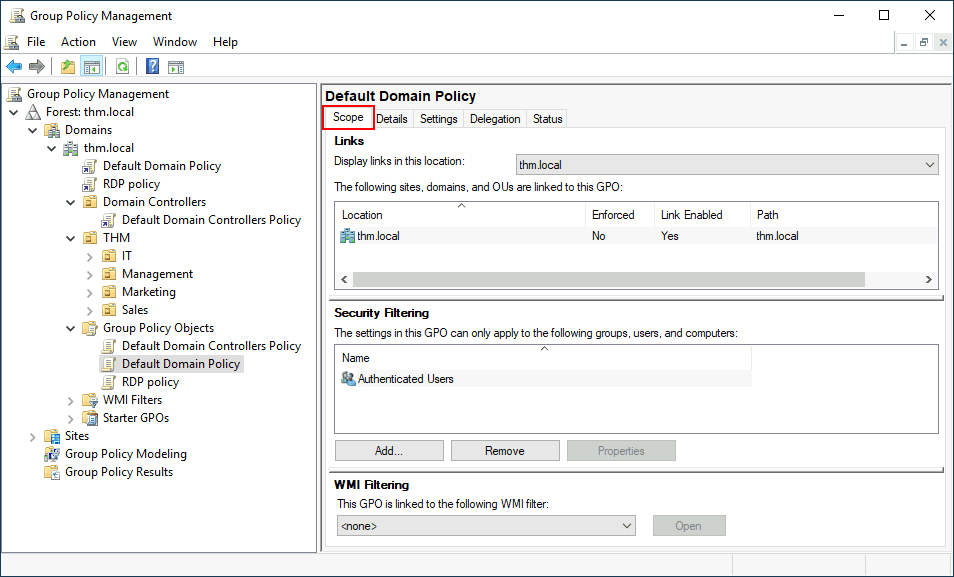
As you can see, you can also apply Security Filtering to GPOs so that they are only applied to specific users/computers under an OU. By default, they will apply to the Authenticated Users group, which includes all users/PCs.
如您所见,还可以将安全筛选应用于 GPO,以便它们仅应用于 OU 下的特定用户/计算机。默认情况下,它们将应用于“经过身份验证的用户”组,其中包括所有用户/电脑。
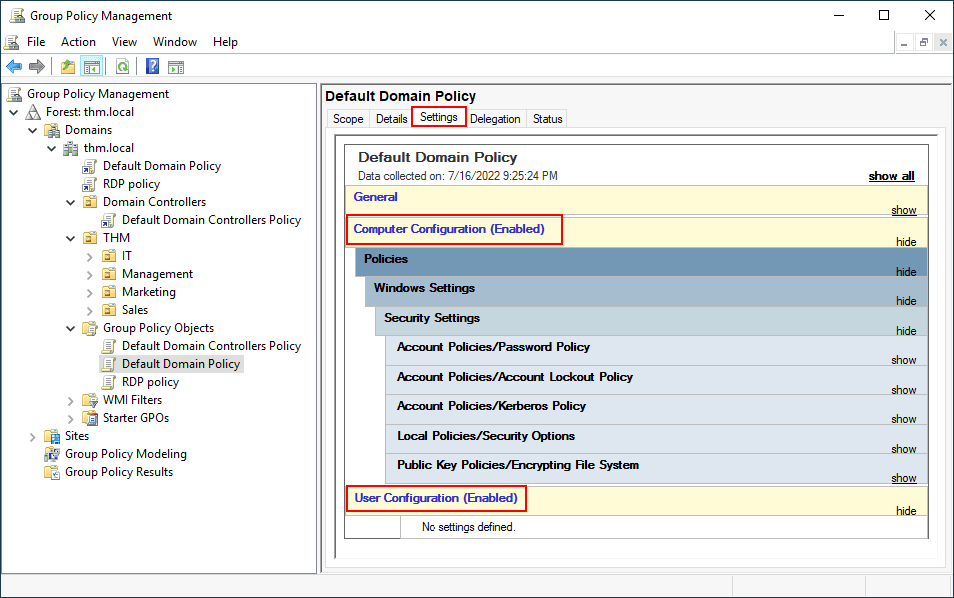
The Settings tab includes the actual contents of the GPO and lets us know what specific configurations it applies. As stated before, each GPO has configurations that apply to computers only and configurations that apply to users only. In this case, the Default Domain Policy only contains Computer Configurations:
“设置”选项卡包括 GPO 的实际内容,并让我们知道它应用了哪些特定配置。如前所述,每个 GPO 都具有仅适用于计算机的配置和仅适用于用户的配置。在这种情况下, Default Domain Policy 仅包含计算机配置:
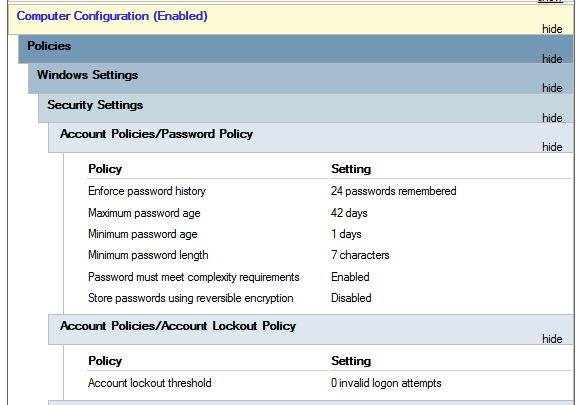
Feel free to explore the GPO and expand on the available items using the “show” links on the right side of each configuration. In this case, the Default Domain Policy indicates really basic configurations that should apply to most domains, including password and account lockout policies:
随意浏览 GPO 并使用每个配置右侧的“显示”链接扩展可用项目。在这种情况下,表示 Default Domain Policy 应适用于大多数域的真正基本配置,包括密码和帐户锁定策略:
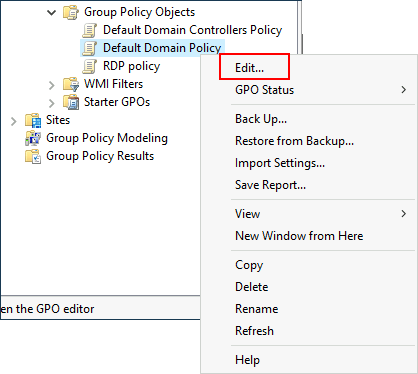
Since this GPO applies to the whole domain, any change to it would affect all computers. Let’s change the minimum password length policy to require users to have at least 10 characters in their passwords. To do this, right-click the GPO and select Edit:
由于此 GPO 适用于整个域,因此对它的任何更改都会影响所有计算机。让我们更改最小密码长度策略,要求用户的密码中至少有 10 个字符。为此,请右键单击 GPO 并选择“编辑”:
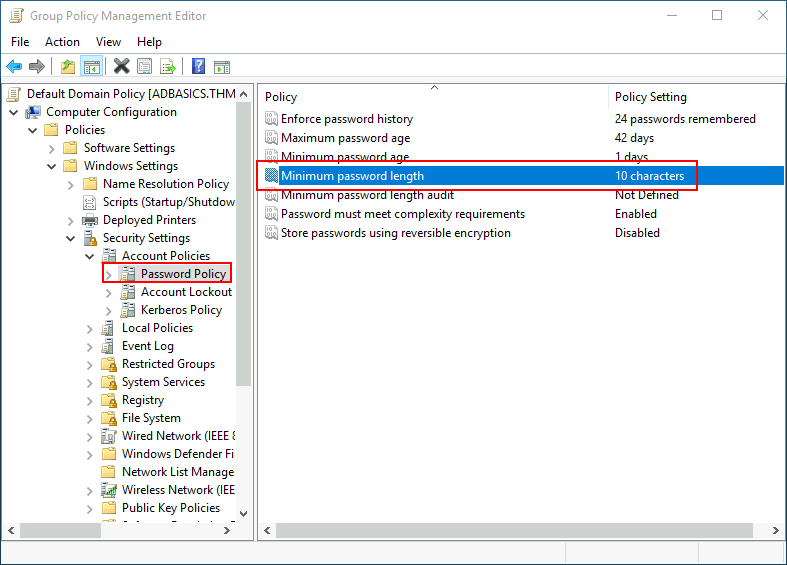
This will open a new window where we can navigate and edit all the available configurations. To change the minimum password length, go to Computer Configurations -> Policies -> Windows Setting -> Security Settings -> Account Policies -> Password Policy and change the required policy value:
这将打开一个新窗口,我们可以在其中导航和编辑所有可用的配置。若要更改最小密码长度,请 Computer Configurations -> Policies -> Windows Setting -> Security Settings -> Account Policies -> Password Policy 转到并更改所需的策略值:
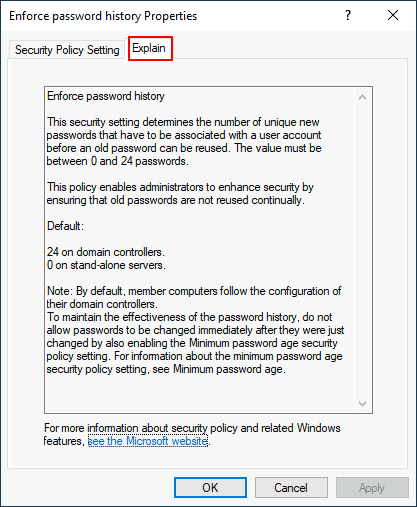
As you can see, plenty of policies can be established in a GPO. While explaining every single of them would be impossible in a single room, do feel free to explore a bit, as some of the policies are straightforward. If more information on any of the policies is needed, you can double-click them and read the Explain tab on each of them:
如您所见,可以在 GPO 中建立大量策略。虽然在一个房间里解释每一个是不可能的,但请随意探索一下,因为有些政策很简单。如果需要有关任何策略的详细信息,可以双击它们并阅读每个策略上的“解释”选项卡:
GPO distribution GPO 分发
GPOs are distributed to the network via a network share called SYSVOL, which is stored in the DC. All users in a domain should typically have access to this share over the network to sync their GPOs periodically. The SYSVOL share points by default to the *C:\Windows\SYSVOL\sysvol* directory on each of the DCs in our network.
GPO 通过存储在 DC 中的名为 SYSVOL 的网络共享分发到网络。域中的所有用户通常都应有权通过网络访问此共享,以定期同步其 GPO。默认情况下,SYSVOL 共享指向我们网络中每个 DC 上的 *C:\Windows\SYSVOL\sysvol* 目录。
Once a change has been made to any GPOs, it might take up to 2 hours for computers to catch up. If you want to force any particular computer to sync its GPOs immediately, you can always run the following command on the desired computer:
对任何 GPO 进行更改后,计算机最多可能需要 2 小时才能跟上进度。如果要强制任何特定计算机立即同步其 GPO,则始终可以在所需的计算机上运行以下命令:
Windows 窗户PowerShell PowerShell的
PS C:\> gpupdate /forceCreating some GPOs for THM Inc.
为 THM Inc. 创建一些 GPO。
As part of our new job, we have been tasked with implementing some GPOs to allow us to:
作为我们新工作的一部分,我们的任务是实施一些 GPO,以便我们能够:
- Block non-IT users from accessing the Control Panel.
阻止非 IT 用户访问控制面板。 - Make workstations and servers lock their screen automatically after 5 minutes of user inactivity to avoid people leaving their sessions exposed.
使工作站和服务器在用户不活动 5 分钟后自动锁定屏幕,以避免用户在会话中暴露。
Let’s focus on each of those and define what policies we should enable in each GPO and where they should be linked.
让我们重点关注其中的每一个,并定义我们应该在每个 GPO 中启用哪些策略以及它们应该链接到哪里。
Restrict Access to Control Panel**
**限制对控制面板的访问
We want to restrict access to the Control Panel across all machines to only the users that are part of the IT department. Users of other departments shouldn’t be able to change the system’s preferences.
我们希望将对所有计算机上的控制面板的访问限制为仅属于 IT 部门的用户。其他部门的用户不应能够更改系统的首选项。
Let’s create a new GPO called Restrict Control Panel Access and open it for editing. Since we want this GPO to apply to specific users, we will look under User Configuration for the following policy:
让我们创建一个名为 Restrict Control Panel Access 的新 GPO 并打开它进行编辑。由于我们希望此 GPO 适用于特定用户,因此我们将查看 User Configuration 以下策略:
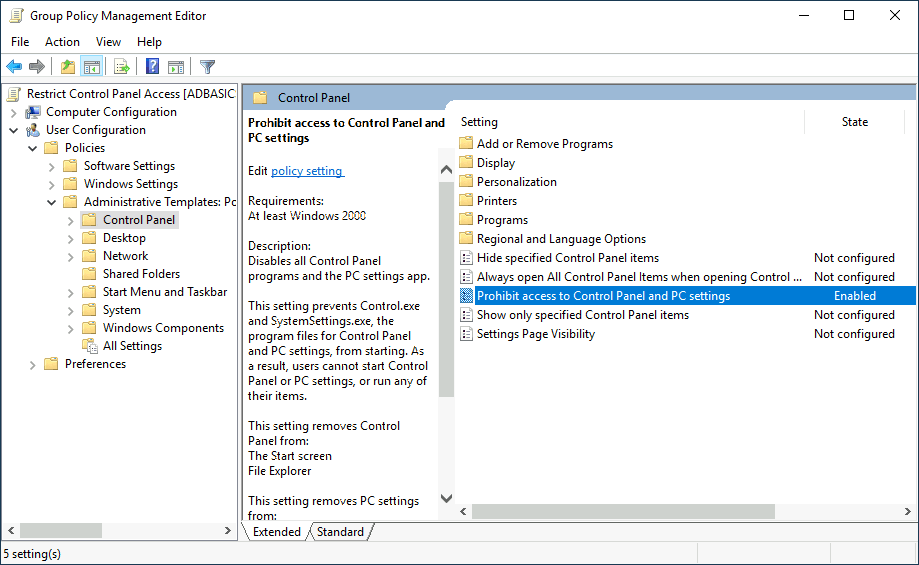
Notice we have enabled the Prohibit Access to Control Panel and PC settings policy.
请注意,我们已启用“禁止访问控制面板和电脑”设置策略。
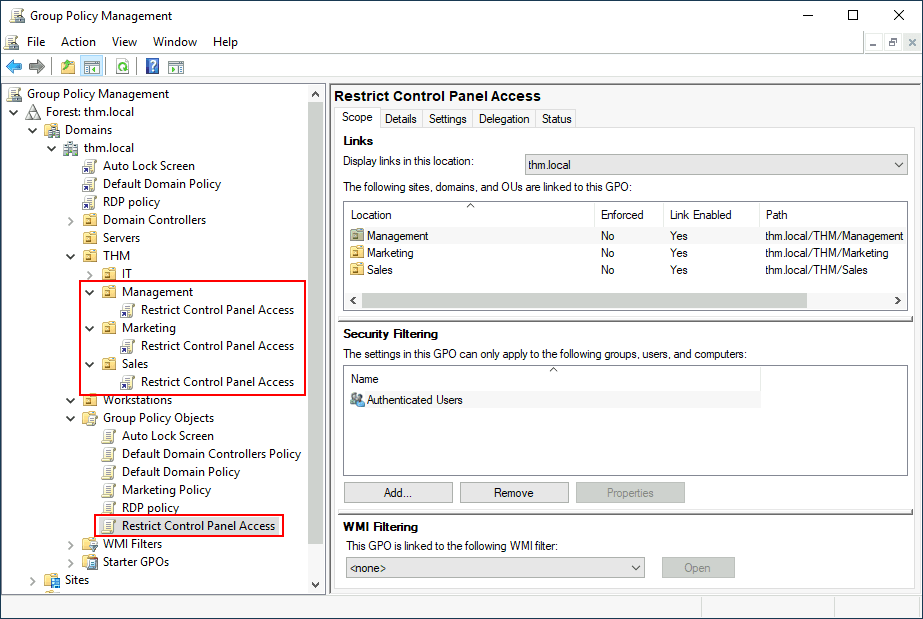
Once the GPO is configured, we will need to link it to all of the OUs corresponding to users who shouldn’t have access to the Control Panel of their PCs. In this case, we will link the Marketing, Management and Sales OUs by dragging the GPO to each of them:
配置 GPO 后,我们需要将其链接到与不应访问其电脑控制面板的用户对应的所有 OU。在本例中,我们将通过将 GPO 拖动到每个 和 Sales OU 来链接 Marketing 它们 Management :
Auto Lock Screen** **GPO** **自动锁屏 GPO
For the first GPO, regarding screen locking for workstations and servers, we could directly apply it over the Workstations, Servers and Domain Controllers OUs we created previously.
对于第一个 GPO,关于工作站和服务器的屏幕锁定,我们可以直接将其应用于我们之前创建的 Workstations 和 Servers Domain Controllers OU。
While this solution should work, an alternative consists of simply applying the GPO to the root domain, as we want the GPO to affect all of our computers. Since the Workstations, Servers and Domain Controllers OUs are all child OUs of the root domain, they will inherit its policies.
虽然此解决方案应该有效,但另一种方法是简单地将 GPO 应用于根域,因为我们希望 GPO 影响我们所有的计算机。由于 Workstations 和 Servers Domain Controllers OU 都是根域的子 OU,因此它们将继承其策略。
Note: You might notice that if our GPO is applied to the root domain, it will also be inherited by other OUs like Sales or Marketing. Since these OUs contain users only, any Computer Configuration in our GPO will be ignored by them.
注意:您可能会注意到,如果我们的 GPO 应用于根域,它也将被其他 OU 继承,例如 Sales Marketing 或 。由于这些 OU 仅包含用户,因此它们将忽略 GPO 中的任何计算机配置。
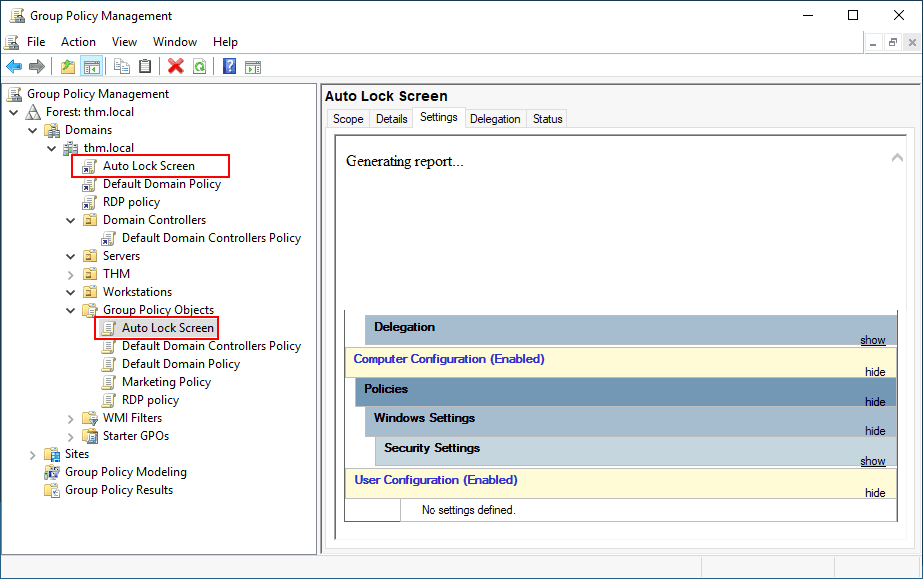
Let’s create a new GPO, call it Auto Lock Screen, and edit it. The policy to achieve what we want is located in the following route:
让我们创建一个新的 GPO,将其 Auto Lock Screen 命名为 ,然后对其进行编辑。实现我们想要的目标的策略位于以下路线中:
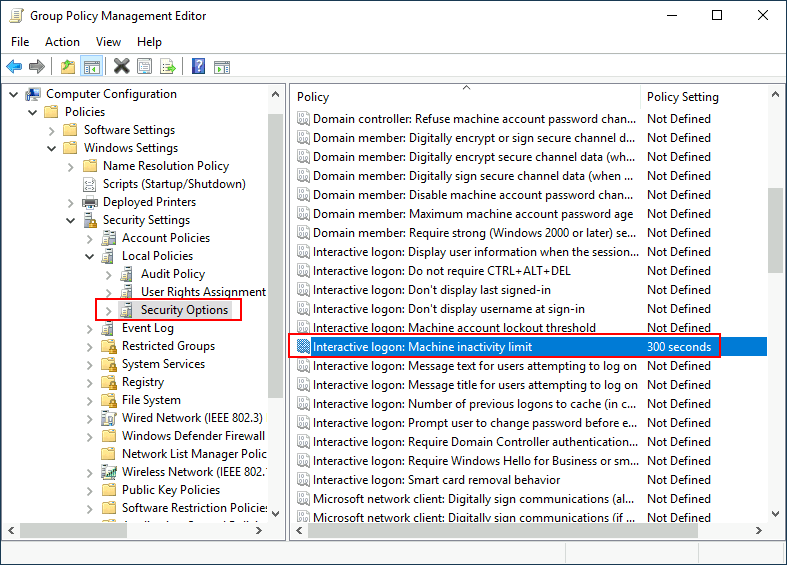
We will set the inactivity limit to 5 minutes so that computers get locked automatically if any user leaves their session open. After closing the GPO editor, we will link the GPO to the root domain by dragging the GPO to it:
我们会将非活动限制设置为 5 分钟,以便在任何用户将其会话保持打开状态时计算机自动锁定。关闭 GPO 编辑器后,我们将通过将 GPO 拖动到根域来链接 GPO:
Once the GPOs have been applied to the correct OUs, we can log in as any users in either Marketing, Sales or Management for verification. For this task, let’s connect via RDP using Mark’s credentials:
将 GPO 应用于正确的 OU 后,我们可以在 Marketing、Sales 或 Management 中以任何用户身份登录以进行验证。对于此任务,让我们使用 Mark 的凭据通过 RDP 进行连接:

| Username** **** **用户名 | Mark 马克 |
|---|---|
| Password** **** **密码 | M4rk3t1ng.21 货号 M4rk3t1ng.21 |
Note: When connecting via RDP, use THM****\Mark as the username to specify you want to log in using the user Mark on the THM domain.
注意:通过 RDP 连接时,请使用 THM****\Mark 用户名来指定要使用 THM 域上的用户 Mark 登录。
If we try opening the Control Panel, we should get a message indicating this operation is denied by the administrator. You can also wait 5 minutes to check if the screen is automatically locked if you want.
如果我们尝试打开控制面板,我们应该收到一条消息,指示管理员拒绝此操作。如果需要,您也可以等待 5 分钟以检查屏幕是否自动锁定。
Since we didn’t apply the control panel GPO on IT, you should still be able to log into the machine as any of those users and access the control panel.
由于我们没有在 IT 上应用控制面板 GPO,因此您仍然应该能够以这些用户中的任何一个身份登录计算机并访问控制面板。
Note: If you created and linked the GPOs, but for some reason, they still don’t work, remember you can run gpupdate /force to force GPOs to be updated.
注意:如果您创建并链接了 GPO,但由于某种原因,它们仍然不起作用,请记住,您可以运行 gpupdate /force 以强制更新 GPO。
Answer the questions below
回答以下问题
What is the name of the network share used to distribute GPOs to domain machines?
用于将 GPO 分发到域计算机的网络共享的名称是什么?
SYSVOL
Can a GPO be used to apply settings to users and computers? (yay/nay)
是否可以使用 GPO 将设置应用于用户和计算机?(是/不是)
yay
Authentication Methods
When using Windows domains, all credentials are stored in the Domain Controllers. Whenever a user tries to authenticate to a service using domain credentials, the service will need to ask the Domain Controller to verify if they are correct. Two protocols can be used for network authentication in windows domains:
使用 Windows 域时,所有凭据都存储在域控制器中。每当用户尝试使用域凭据对服务进行身份验证时,该服务都需要要求域控制器验证它们是否正确。两种协议可用于 Windows 域中的网络身份验证:
- Kerberos****: Used by any recent version of Windows. This is the default protocol in any recent domain.
Kerberos:由任何最新版本的 Windows 使用。这是任何最近域中的默认协议。 - NetNTLM: Legacy authentication protocol kept for compatibility purposes.
NetNTLM:为兼容性目的而保留的旧式身份验证协议。
While NetNTLM should be considered obsolete, most networks will have both protocols enabled. Let’s take a deeper look at how each of these protocols works.
虽然 NetNTLM 应被视为过时,但大多数网络都将启用这两种协议。让我们更深入地了解这些协议中的每一个是如何工作的。
Kerberos Authentication Kerberos 身份验证
Kerberos authentication is the default authentication protocol for any recent version of Windows. Users who log into a service using Kerberos will be assigned tickets. Think of tickets as proof of a previous authentication. Users with tickets can present them to a service to demonstrate they have already authenticated into the network before and are therefore enabled to use it.
Kerberos 身份验证是任何最新版本的 Windows 的默认身份验证协议。使用 Kerberos 登录服务的用户将获得票证。将票证视为先前身份验证的证明。拥有票证的用户可以将其呈现给服务,以证明他们之前已经对网络进行了身份验证,因此能够使用它。
When Kerberos is used for authentication, the following process happens:
当 Kerberos 用于身份验证时,将发生以下过程:
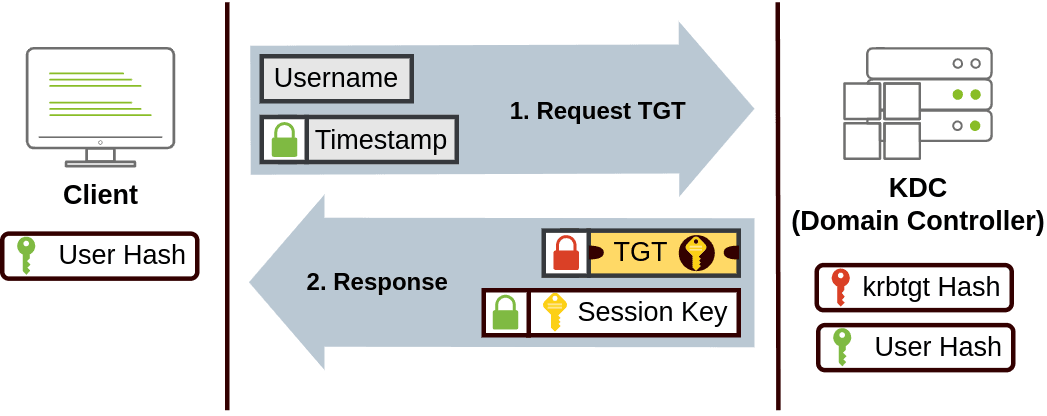
- The user sends their username and a timestamp encrypted using a key derived from their password to the Key Distribution Center (KDC), a service usually installed on the Domain Controller in charge of creating Kerberos tickets on the network.
用户将其用户名和使用从其密码派生的密钥加密的时间戳发送到密钥分发中心 (KDC),该服务通常安装在负责在网络上创建 Kerberos 票证的域控制器上。The KDC will create and send back a Ticket Granting Ticket (TGT), which will allow the user to request additional tickets to access specific services. The need for a ticket to get more tickets may sound a bit weird, but it allows users to request service tickets without passing their credentials every time they want to connect to a service. Along with the TGT, a Session Key is given to the user, which they will need to generate the following requests.
KDC 将创建并发回票证授予票证 (TGT),这将允许用户请求额外的票证以访问特定服务。需要票证才能获得更多票证可能听起来有点奇怪,但它允许用户在每次想要连接到服务时都无需传递其凭据即可请求服务票证。与 TGT 一起,将向用户提供会话密钥,他们需要该密钥来生成以下请求。Notice the TGT is encrypted using the krbtgt account’s password hash, and therefore the user can’t access its contents. It is essential to know that the encrypted TGT includes a copy of the Session Key as part of its contents, and the KDC has no need to store the Session Key as it can recover a copy by decrypting the TGT if needed.
请注意,TGT 是使用 krbtgt 帐户的密码哈希加密的,因此用户无法访问其内容。必须知道,加密的 TGT 包括会话密钥的副本作为其内容的一部分,并且 KDC 无需存储会话密钥,因为它可以在需要时通过解密 TGT 来恢复副本。
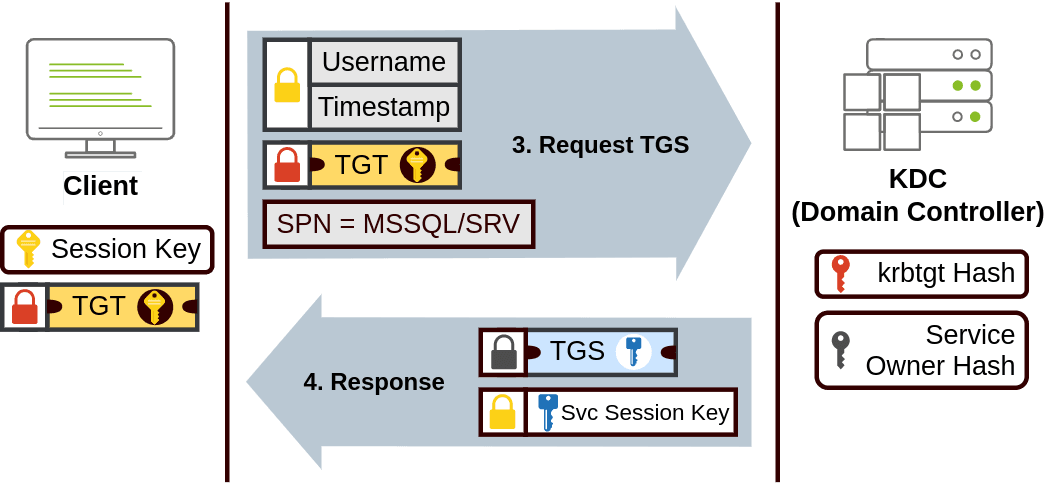
- When a user wants to connect to a service on the network like a share, website or database, they will use their TGT to ask the KDC for a Ticket Granting Service (TGS). TGS are tickets that allow connection only to the specific service they were created for. To request a TGS, the user will send their username and a timestamp encrypted using the Session Key, along with the TGT and a Service Principal Name (SPN), which indicates the service and server name we intend to access.
当用户想要连接到网络上的服务(如共享、网站或数据库)时,他们将使用其 TGT 向 KDC 请求票证授予服务 (TGS)。TGS 是仅允许连接到为其创建的特定服务的票证。要请求 TGS,用户将发送其用户名和使用会话密钥加密的时间戳,以及 TGT 和服务主体名称 (SPN),该名称指示我们打算访问的服务和服务器名称。As a result, the KDC will send us a TGS along with a Service Session Key, which we will need to authenticate to the service we want to access. The TGS is encrypted using a key derived from the Service Owner Hash. The Service Owner is the user or machine account that the service runs under. The TGS contains a copy of the Service Session Key on its encrypted contents so that the Service Owner can access it by decrypting the TGS.
因此,KDC 将向我们发送一个 TGS 以及一个服务会话密钥,我们需要对要访问的服务进行身份验证。TGS 使用派生自服务所有者哈希的密钥进行加密。服务所有者是运行服务的用户或计算机帐户。TGS 在其加密内容上包含服务会话密钥的副本,以便服务所有者可以通过解密 TGS 来访问它。
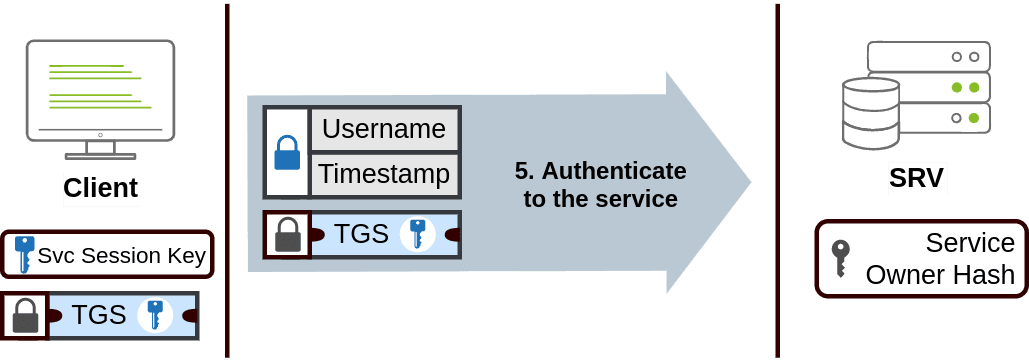
- The TGS can then be sent to the desired service to authenticate and establish a connection. The service will use its configured account’s password hash to decrypt the TGS and validate the Service Session Key.
然后,可以将 TGS 发送到所需的服务以进行身份验证并建立连接。该服务将使用其配置的帐户的密码哈希来解密 TGS 并验证服务会话密钥。
NetNTLM Authentication NetNTLM 身份验证
NetNTLM works using a challenge-response mechanism. The entire process is as follows:
NetNTLM 使用质询-响应机制工作。整个过程如下:
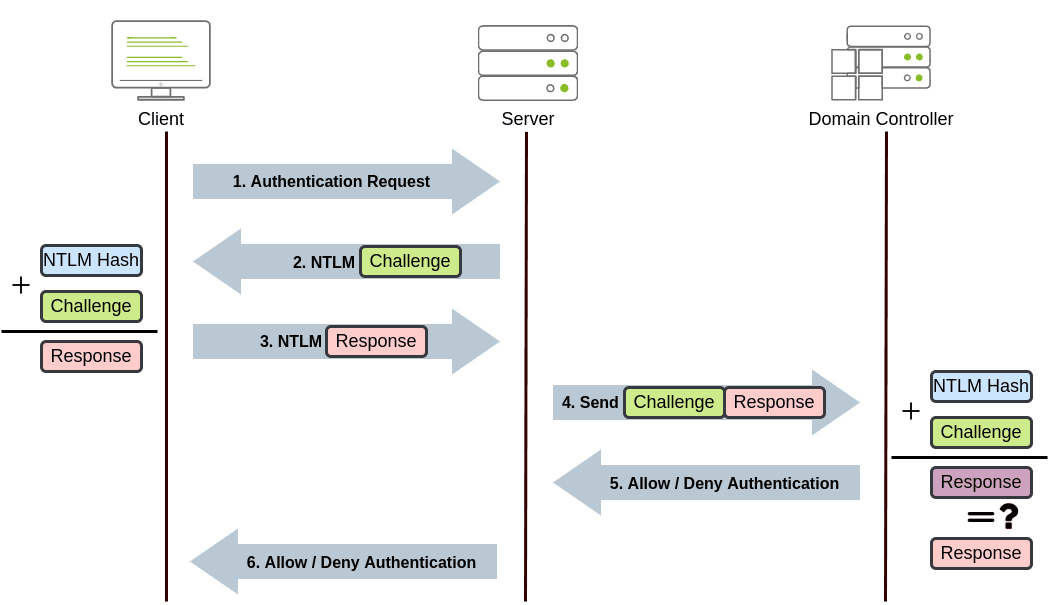
- The client sends an authentication request to the server they want to access.
客户端向要访问的服务器发送身份验证请求。 - The server generates a random number and sends it as a challenge to the client.
服务器生成一个随机数,并将其作为质询发送给客户端。 - The client combines their NTLM password hash with the challenge (and other known data) to generate a response to the challenge and sends it back to the server for verification.
客户端将其 NTLM 密码哈希与质询(和其他已知数据)相结合,以生成对质询的响应,并将其发送回服务器进行验证。 - The server forwards the challenge and the response to the Domain Controller for verification.
服务器将质询和响应转发到域控制器进行验证。 - The domain controller uses the challenge to recalculate the response and compares it to the original response sent by the client. If they both match, the client is authenticated; otherwise, access is denied. The authentication result is sent back to the server.
域控制器使用质询重新计算响应,并将其与客户端发送的原始响应进行比较。如果它们都匹配,则对客户端进行身份验证;否则,访问将被拒绝。身份验证结果将发送回服务器。 - The server forwards the authentication result to the client.
服务器将身份验证结果转发给客户端。
Note that the user’s password (or hash) is never transmitted through the network for security.
请注意,为了安全起见,用户的密码(或哈希值)绝不会通过网络传输。
Note: The described process applies when using a domain account. If a local account is used, the server can verify the response to the challenge itself without requiring interaction with the domain controller since it has the password hash stored locally on its SAM.
注意:所述过程适用于使用域帐户。如果使用本地帐户,则服务器可以验证对质询本身的响应,而无需与域控制器进行交互,因为它的密码哈希存储在其 SAM 上。
Answer the questions below
回答以下问题
Will a current version of Windows use NetNTLM as the preferred authentication protocol by default? (yay/nay)
默认情况下,当前版本的 Windows 是否使用 NetNTLM 作为首选身份验证协议?(是/不是)
nay
When referring to Kerberos, what type of ticket allows us to request further tickets known as TGS?
在提到 Kerberos 时,哪种类型的票证允许我们请求更多称为 TGS 的票证?
Ticket Granting Ticket
When using NetNTLM, is a user’s password transmitted over the network at any point? (yay/nay)
使用 NetNTLM 时,用户的密码是否随时通过网络传输?(是/不是)
nay
Trees, Forests and Trusts
So far, we have discussed how to manage a single domain, the role of a Domain Controller and how it joins computers, servers and users.
到目前为止,我们已经讨论了如何管理单个域、域控制器的角色以及它如何加入计算机、服务器和用户。
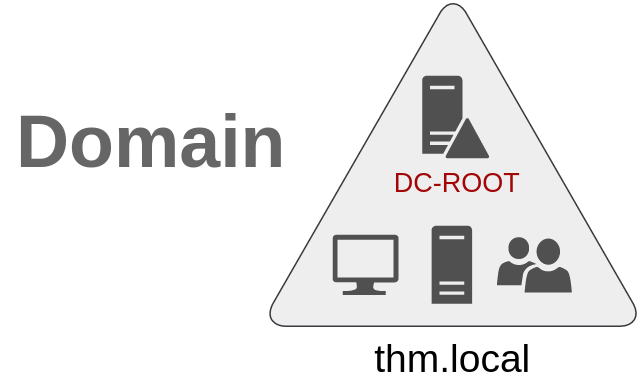
As companies grow, so do their networks. Having a single domain for a company is good enough to start, but in time some additional needs might push you into having more than one.
随着公司的发展,他们的网络也在发展。为一家公司拥有一个域名就足够了,但随着时间的推移,一些额外的需求可能会促使您拥有多个域名。
Trees 树
Imagine, for example, that suddenly your company expands to a new country. The new country has different laws and regulations that require you to update your GPOs to comply. In addition, you now have IT people in both countries, and each IT team needs to manage the resources that correspond to each country without interfering with the other team. While you could create a complex OU structure and use delegations to achieve this, having a huge AD structure might be hard to manage and prone to human errors.
例如,想象一下,您的公司突然扩展到一个新的国家。新国家/地区有不同的法律和法规,要求您更新 GPO 以遵守。此外,您现在在两个国家/地区都有 IT 人员,每个 IT 团队都需要在不干扰其他团队的情况下管理与每个国家/地区相对应的资源。虽然您可以创建复杂的 OU 结构并使用委派来实现此目的,但拥有庞大的 AD 结构可能难以管理并且容易出现人为错误。
Luckily for us, Active Directory supports integrating multiple domains so that you can partition your network into units that can be managed independently. If you have two domains that share the same namespace (thm.local in our example), those domains can be joined into a Tree.
幸运的是,Active Directory 支持集成多个域,以便您可以将网络划分为可以独立管理的单元。如果您有两个共享相同命名空间的域(在我们的示例 thm.local 中),则可以将这些域联接到树中。
If our thm.local domain was split into two subdomains for UK and US branches, you could build a tree with a root domain of thm.local and two subdomains called uk.thm.local and us.thm.local, each with its AD, computers and users:
如果我们的 thm.local 域被拆分为两个子域,用于英国和美国分支,您可以构建一个树,其根域为 和 thm.local 两个子 uk.thm.local 域,称为 和 us.thm.local ,每个子域都有其 AD、计算机和用户:
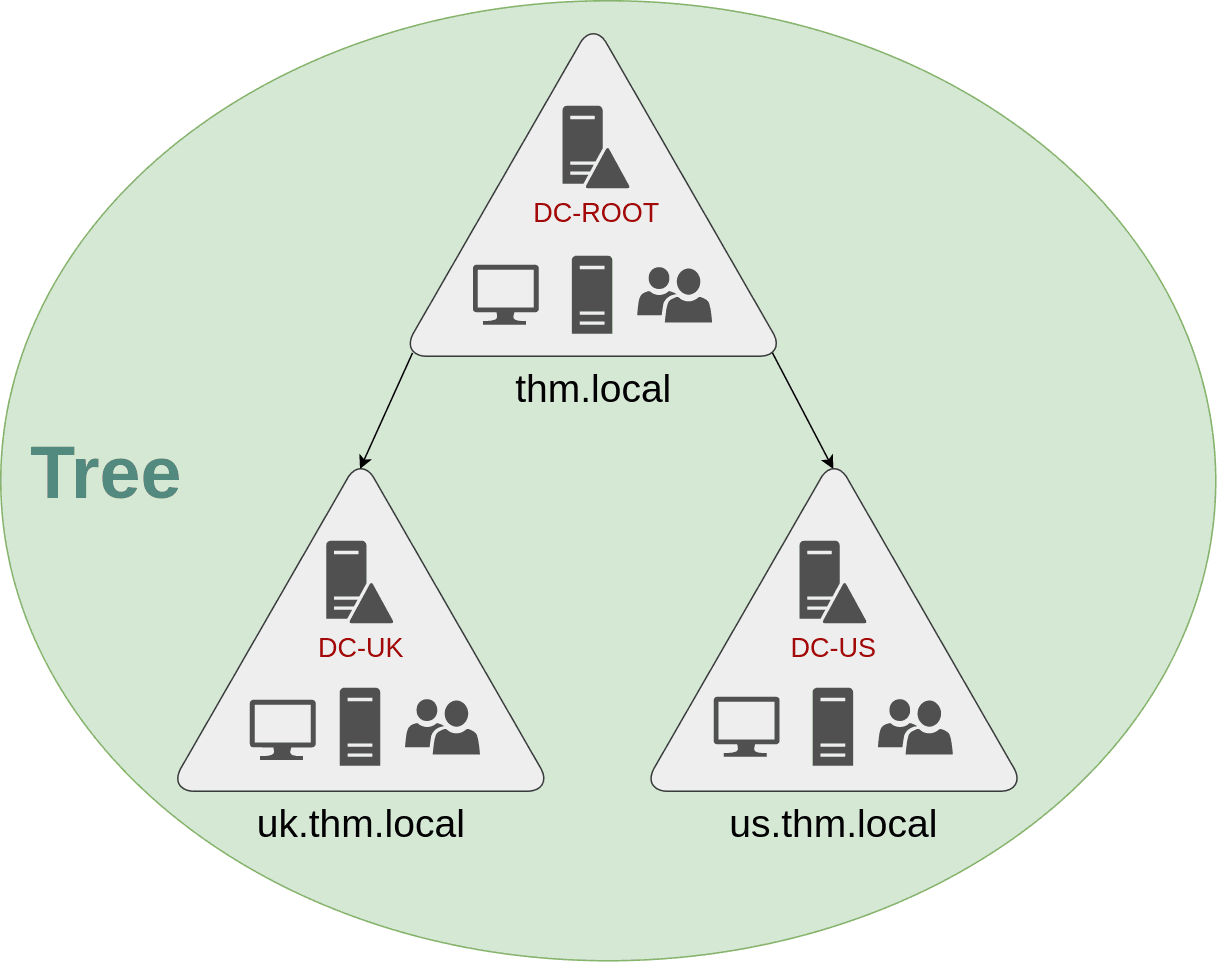
This partitioned structure gives us better control over who can access what in the domain. The IT people from the UK will have their own DC that manages the UK resources only. For example, a UK user would not be able to manage US users. In that way, the Domain Administrators of each branch will have complete control over their respective DCs, but not other branches’ DCs. Policies can also be configured independently for each domain in the tree.
这种分区结构使我们能够更好地控制谁可以访问域中的内容。来自英国的 IT 人员将拥有自己的 DC,仅管理英国资源。例如,英国用户将无法管理美国用户。这样,每个分支的域管理员将完全控制各自的 DC,但不能完全控制其他分支的 DC。
A new security group needs to be introduced when talking about trees and forests. The Enterprise Admins group will grant a user administrative privileges over all of an enterprise’s domains. Each domain would still have its Domain Admins with administrator privileges over their single domains and the Enterprise Admins who can control everything in the enterprise.
在谈论树木和森林时,需要引入一个新的安全组。Enterprise Admins 组将授予用户对企业所有域的管理权限。每个域仍将拥有其域管理员,这些域管理员对其单个域具有管理员权限,以及可以控制企业中所有内容的企业管理员。
Forests 森林
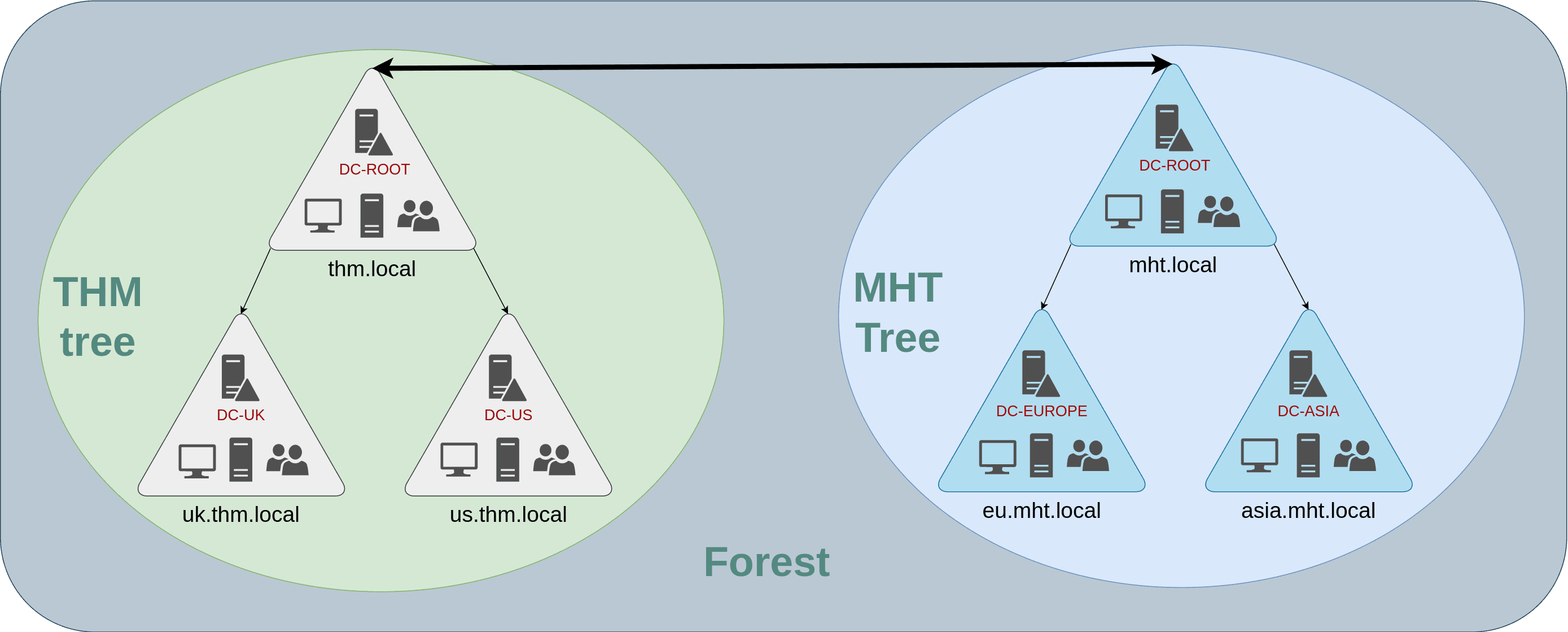
The domains you manage can also be configured in different namespaces. Suppose your company continues growing and eventually acquires another company called MHT Inc. When both companies merge, you will probably have different domain trees for each company, each managed by its own IT department. The union of several trees with different namespaces into the same network is known as a forest.
您管理的域也可以在不同的命名空间中配置。假设您的公司继续发展并最终收购了另一家名为 MHT Inc. 当两家公司合并时,您可能为每家公司拥有不同的域树,每个域树都由自己的 IT 部门管理。将具有不同命名空间的多个树合并到同一网络中称为林。
Trust Relationships 信任关系
Having multiple domains organised in trees and forest allows you to have a nice compartmentalised network in terms of management and resources. But at a certain point, a user at THM UK might need to access a shared file in one of MHT ASIA servers. For this to happen, domains arranged in trees and forests are joined together by trust relationships.
在树木和森林中组织多个域可以让您在管理和资源方面拥有一个很好的分隔网络。但是在某个时候,THM UK的用户可能需要访问MHT ASIA服务器之一中的共享文件。为此,在树和森林中排列的域通过信任关系连接在一起。
In simple terms, having a trust relationship between domains allows you to authorise a user from domain THM** UK to access resources from domain MHT EU.
简单来说,在域之间建立信任关系允许您授权域 THM **UK 中的用户访问域 MHT EU 中的资源。
The simplest trust relationship that can be established is a one-way trust relationship. In a one-way trust, if Domain AAA trusts Domain BBB, this means that a user on BBB can be authorised to access resources on AAA:
可以建立的最简单的信任关系是单向信任关系。在单向信任中,如果 Domain AAA 信任 Domain BBB ,这意味着 BBB 上的用户可以被授权访问 AAA 上的资源:
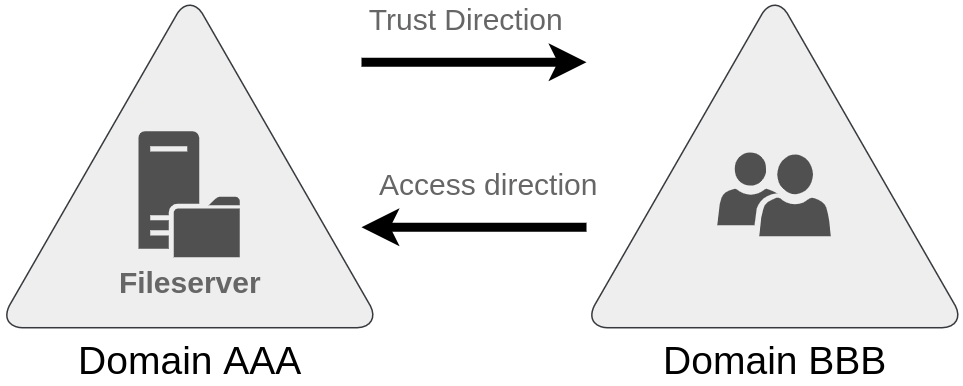
The direction of the one-way trust relationship is contrary to that of the access direction.
单向信任关系的方向与接入方向的方向相反。
Two-way trust relationships can also be made to allow both domains to mutually authorise users from the other. By default, joining several domains under a tree or a forest will form a two-way trust relationship.
还可以建立双向信任关系,以允许两个域相互授权另一个域的用户。默认情况下,在树或林下联接多个域将形成双向信任关系。
It is important to note that having a trust relationship between domains doesn’t automatically grant access to all resources on other domains. Once a trust relationship is established, you have the chance to authorise users across different domains, but it’s up to you what is actually authorised or not.
请务必注意,在域之间建立信任关系不会自动授予对其他域上所有资源的访问权限。建立信任关系后,您就有机会跨不同域授权用户,但实际授权或未授权取决于您。
Answer the questions below
回答以下问题
What is a group of Windows domains that share the same namespace called?
共享同一命名空间的一组 Windows 域叫什么?
tree
What should be configured between two domains for a user in Domain A to access a resource in Domain B?
域 A 中的用户在两个域之间应配置什么才能访问域 B 中的资源?
Trust Relationships